
How to Send RB2B Visitor Data to Google Sheets Using Make.com
A step-by-step guide to capturing person-level and company-level website visitors in a spreadsheet, automatically.
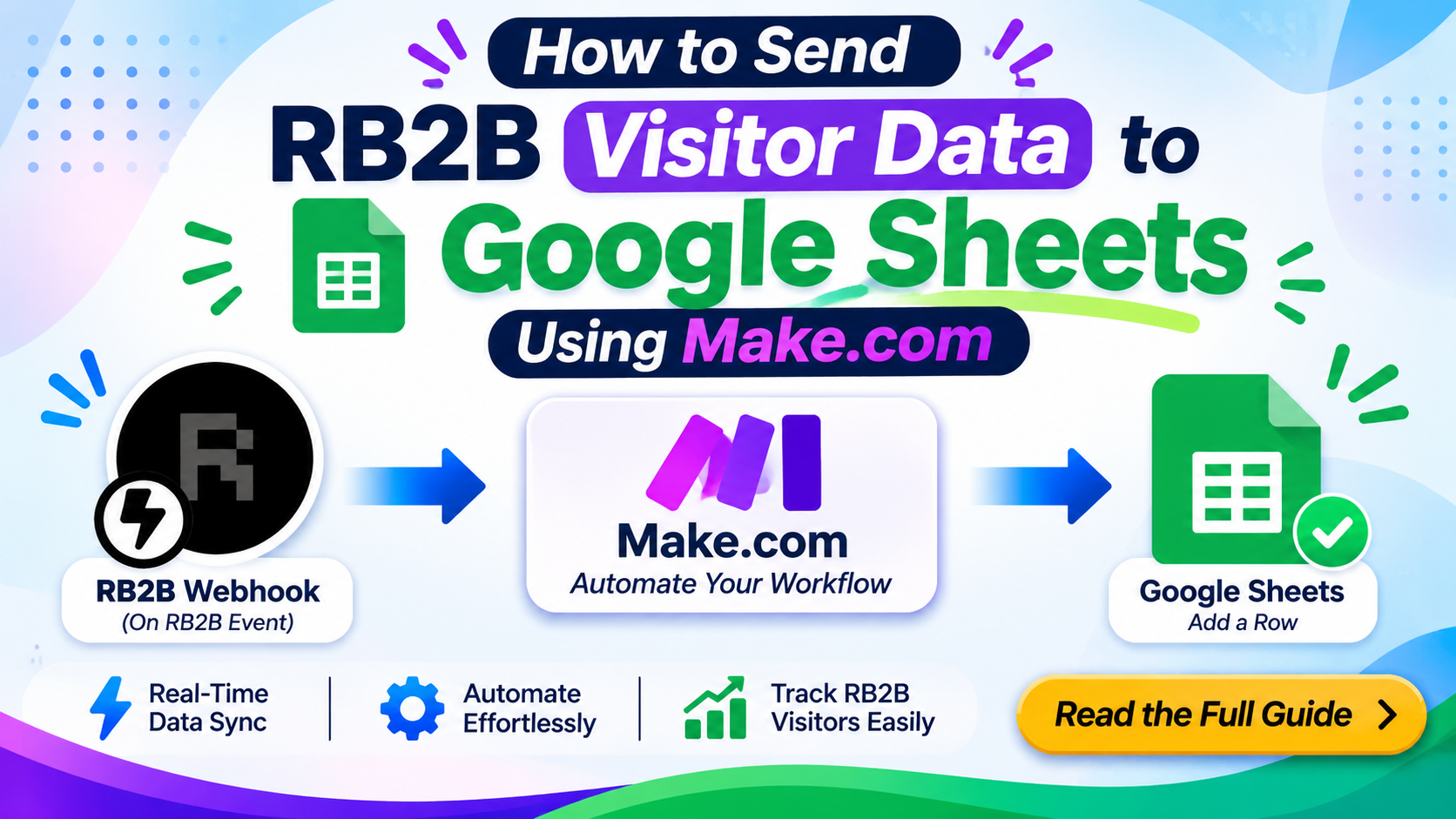
RB2B tells you which people and companies are visiting your website. The data is useful, but it's only valuable if your team can actually use it. A Google Sheet is one of the easiest places to share, filter and review that data.
In this guide, you'll connect RB2B to Google Sheets using Make.com so that every identified visitor is added as a new row in real time, with no copy-pasting and no CSV exports.
What You'll Build
A two-module Make.com scenario:
- RB2B Webhook, On RB2B Event: fires every time RB2B identifies a visitor.
- Google Sheets, Add a Row: writes that visitor's details into your spreadsheet.
What You Need
- An RB2B account with the Make.com integration available
- A Make.com account
- A Google account and a blank Google Sheet
Step 1: Install the RB2B App in Make.com
- In RB2B, go to Integrations → Make.com.
- Click Install RB2B's Make.com App. This opens Make and adds the app to your organization.
- In Make, open Organization → Installed apps and confirm RB2B Webhook is listed.
Step 2: Prepare Your Google Sheet
Create a new sheet and add these headers in row 1:
| Column | Example |
|---|---|
| Seen At | 2026-11-13T19:34:36 |
| First Name | Adam |
| Last Name | Robinson |
| Title | CEO |
| Company Name | Retention.com |
| Business Email | adam@retention.com |
| LinkedIn URL | linkedin.com/in/... |
| Website | https://retention.com |
| Industry | Internet Technology & Services |
| Employee Count | 1-10 |
| Estimate Revenue | $22M rev |
| City | Austin |
| State | Texas |
| Zipcode | 73301 |
| Referrer | https://google.com |
| Captured URL | https://yoursite.com/pricing |
| Tags | Hot Page, Hot Lead |
| Visitor Type | Person / Company |
Step 3: Create the Scenario in Make
- Click Create scenario.
- Click the + and search for RB2B Webhook.
- Choose the trigger On RB2B Event.
- Click Add to create a new webhook, give it a name such as
RB2B Visitors, and save. - Copy the webhook URL Make generates.
Step 4: Connect RB2B to the Webhook
- Go back to RB2B → Integrations → Make.com.
- Paste the webhook URL into the Webhook URL field.
- Turn the Status toggle on.
- Click Save.
Capture Company-Level Visitors Too
RB2B can identify a company even when it can't identify the individual. To receive those visits, enable Sync company-only profiles in the integration settings.
Repeat Visitors
There is also a Send repeat visitor data option. When it's on, RB2B sends every return visit. Leave it off unless you're ready to handle duplicates (see the tips below), because otherwise you'll get repeated rows for the same person.
Step 5: Teach Make the Data Structure
- In Make, click Run once so the scenario is listening.
- In RB2B, click Send a Test Event.
- Make will receive the test payload and detect all available fields.
RB2B sends a fixed set of fields with every request: LinkedIn URL, First Name, Last Name, Title, Company Name, Business Email, Website, Industry, Employee Count, Estimate Revenue, City, State, Zipcode, Seen At, Referrer, Captured URL and Tags. The payload can't be customized, so any renaming has to happen on the Make side.
Step 6: Add the Google Sheets Module
- Click the + after the RB2B module and add Google Sheets → Add a Row.
- Connect your Google account.
- Select your spreadsheet and sheet.
- Map each column to the matching field from the RB2B module.
- For Visitor Type, use a formula such as:
if(First Name; "Person"; "Company")
Company-only profiles arrive without personal details, so an empty First Name tells you the record is a company.
Step 7: Test and Go Live
- Click Run once and send another test event from RB2B.
- Check that a row appears in your sheet.
- Delete the test row.
- Turn the scenario ON and set scheduling to Immediately.
From now on, each identified visitor lands in your sheet within seconds.
Optional: Separate People and Companies
If you'd rather keep personal and company-level visitors on different tabs:
- Add a Router after the RB2B module.
- Route 1: add a filter where First Name exists and send it to the "People" tab.
- Route 2: add a filter where First Name does not exist and send it to the "Companies" tab.
Optional: Prevent Duplicate Rows
If you turn on repeat visitor data:
- Add Google Sheets → Search Rows and match on LinkedIn URL or Business Email.
- Add a Router. If a row is found, use Update a Row. If not, use Add a Row.
Importing Your Existing Visitors
The webhook only delivers new visitors from the moment you enable it. It doesn't backfill history. To bring in past data:
- In RB2B, open Exports and download your person-level and company-level visitors as CSV files.
- In Google Sheets, use File → Import → Append to current sheet.
- Rename the CSV headers first, if needed, so they match your webhook columns.
Do this before you switch the scenario on, and dedupe on LinkedIn URL or email to avoid overlap.
Things to Watch Out For
- Missed payloads can't be resent. If your Make scenario is off, or your RB2B billing has a problem, RB2B won't replay those events. Keep the scenario active.
- Credits add up. Each run in this setup uses 2 operations (one per module), so high-traffic sites will use credits quickly. Monitor your usage in Make.
- Fields can be empty. Many fields can be null, so check your mappings and avoid making any of them required.
- HTTPS only. RB2B needs a secure webhook URL. Make's URLs already meet this.
Wrapping Up
With one trigger, one Google Sheets module and a few minutes of setup, you now have a live feed of the people and companies visiting your site, ready for filtering, sharing and follow-up. From here you can extend the scenario by sending Slack alerts for hot leads, pushing contacts into your CRM, or enriching rows before they hit the sheet.
About the author
- A Freelance Dashboard Developer
Comments
Join the discussionNo comments yet. Be the first to comment.